
LEGACY Flex MAM (Deprecated) Introduction and Interface
Dalet's Media Asset Management (MAM) application enables you to upload, organise, perform rough edits, and publish your assets all from one place. One of the greatest aspects of MAM is that you can access it via a browser. This means you can log in and use it anywhere, as long as you are connected to the internet. MAM is also collaborative, which means you can work with your assets alongside other users in your organisation. MAM utilises a micro-services architecture.
Logging into MAM
- Navigate to your organisation's MAM login page, and enter your username and password.

- If you forget your username or password, simply click theForgot your username?orForgot your password? links under the respective fields.

MAM Interface
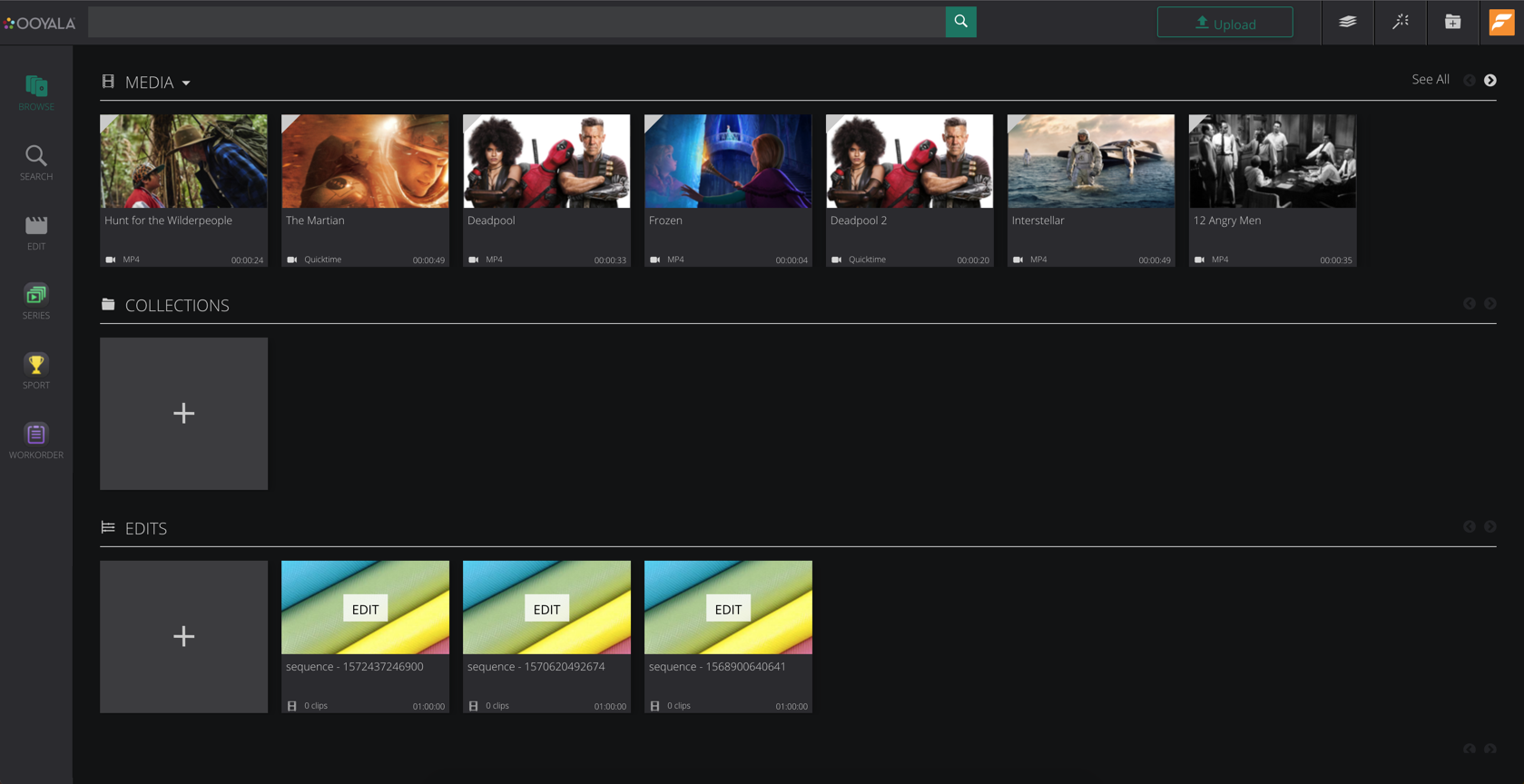
When you log in, the MAM browse page is displayed as below. In the MAM browse page, you can see the assets, collections, and edits you have permission to view. These are organised by the date they were last modified. The most recently modified item is displayed at the beginning of each carousel.

The Top Toolbar
At the top of the MAM interface, a toolbar is displayed:

Toolbar options are as follows:
- The Search Bar:Here you can perform quick searches, by entering a keyword and pressing theEnter key. The search bar also includes an FQL drop down, that provides suggestions for search query syntax, enabling you to perform complex searches using the Dalet Flex Query Language (FQL).
Dalet Flex Query Language in MAM is only available from 6.1.0 onwards. If you are using a previous version of MAM, you can only use the standard search bar. - Upload:Click this icon
 to upload assets of any size straight into MAM.
 - Start a Wizard:Click this icon
 to be presented with a list of existing wizards. Select one from the list to run it.
 - Default Collection:Click this icon
 to list available collections, and set a default to add assets quickly.
 - Metadata Tasks:Click the tasks icon
 to display theTasks panel. This panel lists your available or assigned tasks.
 - Bulk Actions:This icon
 is displayed when you have selected multiple items. You can select multiple items and then perform actions against those items from theBulk Actions panel.
 - Profile Picture:On the top right-hand corner, your profile picture is displayed. If you click this icon, a drop down menu is displayed, where you can access theSettings section, and sign out of MAM.
The Left-hand Toolbar
On the left-hand side, another toolbar is displayed.
This toolbar houses three options:
- Browse:Click this option
 to return to the main browse page, where you can browse through your existing assets, collections, and edits.
 - Search:Click this option
 to display the MAM search panel. Here, you can specify advanced search options.
 - Edit:Click this option
 to display a new edit window, in which you can set up a new edit project.
Filters
Two filters are located on the MAM dashboard:
Workspace Filter: This filter enables you to select a workspace.

Asset Filter: This filter enables you to switch between asset types, such as media assets and group assets

Using the Workspace Filter
To use the workspace filter, follow these steps:
- On the top toolbar, click theSelect a Workspace icon:

- From the drop down, select a workspace from the list:

- When a workspace is selected, the text for that workspace turns grey:

Alternatively, if you have a very long list of workspaces, you can use the search bar at the top of the list to search for your workspace. Enter the name of your workspace, and click theSearch icon.

Notes:
- Your default workspace is always selected by default.
- Only six workspaces are displayed in the drop down list at any one time. To view more workspaces in the list, scroll through the list.
Using the Asset Filter
To use the asset filter:
- Above theAssetcarousel, click theAsset Filter drop down.

- From the drop down, select either theMedia Asset,orGroup Asset option.

- The Asset carousel changes accordingly, to display a list of your group assets, or your media assets.

Components
Tiles
Each item in MAM, such as group assets, media assets, collections, and edits, is represented as a tile. These tiles are displayed on the MAM interface. Each tile for the different object types displays different information. The image shows an example of a tile for a media asset, where there is a representative thumbnail, title, format and duration of the media:

Panels
Each item in MAM, such as an asset, a collection, and edit, has a panel with an overview of the item, where you can edit various details quickly and easily. To access the panel for a specific item, click on the tile, and the panel is displayed on the right-hand side of the screen:

Player
The player has several controls and features:

Drag the slider to scrub back and forth. While you hover over or drag the slider, the timecode is displayed as a pop-up,:

Keyboard Mapping on the Video Player
When using the player, you can use certain keys to perform certain functions, such as playing the asset, previewing a frame, skipping to the next frame, and marking in and out points.
The keys that can be used to control the player are as follows:
| Key | Function |
| Spacebar | Toggle Play |
| Left Arrow | Previous Frame |
| Right Arrow | Next Frame |
| i | Marks an in point |
| o | Marks an out point |
Timeline
The timeline provides an indication of playback, in addition to displaying a logical reference to time-code specific attributes, such as user comments.

The example below shows a timecode specific comment made against an asset. If you press and hold the Shift key and click anywhere within one of these comments, the comment block is highlighted and the player jumps straight to that point in the video.

The timeline also has a zoom and pan feature. To zoom in on a specific section of the timeline, drag the slider to the right. To zoom out again, drag the slider to the left.

Assets
An asset is an object that represents a media file and its metadata, which is managed by Dalet Flex.
Asset types
MAM currently supports the following asset types:
- Media assets
- Group assets
- Image assets
Uploading an Asset
- In MAM, on the top toolbar, click
 .
. - The Web Uploader opens in a new window.

- There are three ways to upload files:
- Click the Upload icon in the top-right corner of the Web Uploader window.
- Click Select or drag your file here and browse to your selected file on your computer.
- Drag and drop your selected file it into the window. - From the Inbox drop down, select an inbox.

- From the Workspace drop down, select a workspace.

- If a metadata schema is associated with the inbox, you must fill in any mandatory metadata fields before uploading the asset.
You must click the Save button to save the metadata. This is located at the end of the metadata fields. If you don't save your metadata, you will be unable upload the asset. - Click Upload File.

- As the file uploads, you will see a bar showing the progress of the upload.

You can still apply bulk metadata to multiple files that are not part of a bulk upload.
Workspaces
You can access any workspaces that you have the permission to see in MAM. You can also view workspace properties and edit any associated metadata.
Filtering to a Specific Workspace
- On the top toolbar, click the Workspaces

- From the dropdown, select a workspace.

- When a workspace is selected, the text turns a faint grey.

- You will see all the media assets, image assets, group assets, and clips that exist within that workspace in the respective carousels.

Viewing All Workspaces
- In the Workspaces drop down, click the arrow next to the See All option.

- You are taken to the Browse: Workspaces page, where you can see all the workspaces represented by a tile.

Notes:
- You can view a list of workspaces in either a tile view, or list view. To switch between the two, click the toggle icon
 located in the top right-hand corner of the page.
 - Clicking the See All option in the Workspace drop down sets the filter to all assets.
- When you click on a workspace tile, the Workspace Summary panel will appear on the right-hand side of the screen.
Workspace Summary Panel
If you click on a workspace tile, a summary panel will appear on the right-hand side of the screen.

In the Workspace Summary panel you will see the following tabs:
Details Tab
You can view and change the summary details for a workspace directly in the Details tab.
- Hover over the field value you wish to change, such as the Description field.

- Click on the field.

- Enter the new details.

- Click the tick
 icon.
icon.
Setting the Type
In order to set the type, you must ensure that the variant is set in the main Dalet Flex Console.
This is an administrative configuration.
Metadata Tab
The Metadata tab enables you to edit metadata associated with any variants that exist within a workspace. If the workspaces have metadata set, then the fields will be present.
To edit metadata fields associated with a variant:
- In the Metadata tab, click the Edit
 icon.
icon. - Click on the field value you wish to change.
- Enter the new details.
- Click the tick icon.
- The changes are made.
- Click Save to finalise.
Members tab
The Members tab lists out all members of a workspace. You cannot edit the members of a workspace in MAM.

Comments Tab
Here you can post a comment against a workspace, as well as view comments that other users have posted.
Commenting on a Workspace
- In the Insert a comment box, enter your comment, and click the + icon.

- The comment is posted below.

Explore Workspace
This is done by clicking the Explore Workspace option at the bottom of the Workspace Summary panel, or double clicking the workspace tile in the browse/search windows. This is setting the workspace filter.

Setting default tile thumbnails
Collections, edits, image assets, and group assets are assigned a default image for visualization. You can set a default for the account. To define a custom image:
- In the top right corner, click on the user profile:

- From the drop-down, click Settings:

- The Settings page is displayed. Select Custom Style:

- The default thumbnail for each tile is displayed. Click the Set image for link under the chosen tile:

- A pop up for the image upload is displayed:

- Select or drag the file to set as the default, then click Upload.

- This image is now updated on all the relevant tiles:

- To reset the default image, select the Reset image link under the respective tile. The tiles are uploaded with the MAM default image:

Setting the default browse carousel
If you have Theme permission, you can choose which carousel is displayed as default on the browse page. Under Settings, a Preset Selections tab is displayed:

Click this tab to display a list of available carousels, then select the one to use as default:

The chosen carousel is now displayed at the top of the MAM screen.
Screen Resolution
The minimum browser window resolution for MAM is 1366 x 768.
If your screen resolution or browser dimensions are lower that the minimum supported for MAM. You can try entering fullscreen mode (f12) or press ‘control and -’ (PC), ‘Command and -’ (Mac) to zoom out.
Comments
0 comments
Please sign in to leave a comment.