
LEGACY Collections (Deprecated)
Collections
Collections enable you to organise your assets in a meaningful way, such as by subject. For example, if you had multiple assets relating to cars, you might want to group these assets together by placing them into a collection called 'Cars'. That way, all the assets that are associated with cars will be in one place, making them easier to find. You can also place one or more collections within another collection. A collection that is placed inside another collection is known as a sub-collection. You can have multiple sub-collections within a collection if you wish.
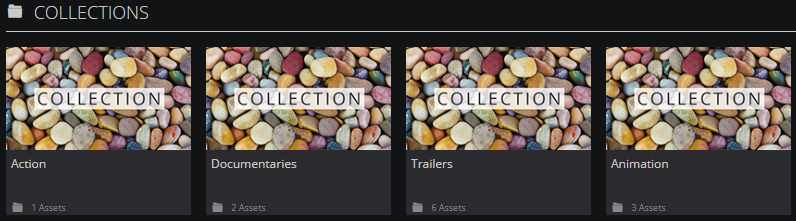
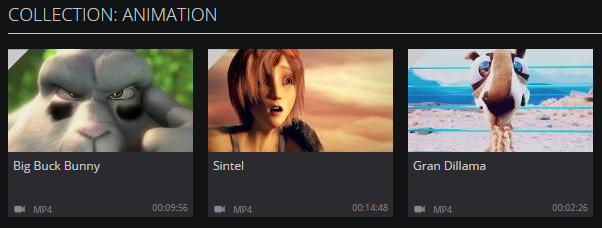
Below you can see an example of a collection which contains multiple assets. In the example below you can see that the collection is called Animation, and this contains assets associated with animated films.
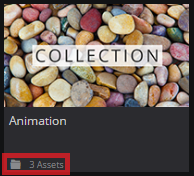
You can see how many items are inside a collection by viewing the details at the bottom of each collection tile.
Collection Summary Panel
If you click on a collection tile, a summary panel will appear on the right-hand side of the screen. In the Collection Summary panel, you will see:
The Details tab
This shows you the specific details of the collection such as the title, creation date, number of assets in the collection, number of sub-collections, and the number of comments made against the collection. You can also view the tags that you have applied to the collection, as well as add new ones.

Under the Details tab you can see which media assets and sub-collections are in a specific collection.

You can remove an asset from the collection directly in the Details tab, by clicking the Trash icon located to the right of each asset.

The Comments tab
Here you can post comments against the entire collection.

The Comments tab on the Collection Details panel works in exactly the same way as it does for Assets. Simply enter your comment in the Insert a Comment box, and then click the + icon.

The comment then appears below the collection.

Explore Collection option
This option is located at the bottom of the panel. When you click this option or double click the collection tile on the browse page, you will navigate into the collection’s directory. This provides an overview of all the assets and sub-collections within a specific collection. You can independently access the details for each asset in the collection from here.

To access the Explore Collections view, click the Explore Collections option at the bottom of the Collection Summary panel or double click the collection tile.

You will then be taken to the Explore Collection view. From here, you can view all the items that are in a collection. This includes any assets and sub-collections you may have in that collection. You can perform any of the functions that relate to assets and collections in exactly the same way as on the browse page, such as playing assets, viewing the asset details, and so on.

Creating a Collection
There are two ways to create a collection.
Method 1
- Navigate to an asset that you wish to place in your new collection.

- Hover over the asset, and click the Folder icon.

- From the menu, click the Add New Collection icon.

- In the New Collection field, enter a name for your new collection.

- Click the + icon next to the field.

- Your new collection is then created, with your chosen asset inside. Your new collection will appear in the Collections carousel on the MAM dashboard.
If you have created a collection, only _you_ will be able to see it in MAM.
Method 2
- In the Collections carousel, click the + icon.

- Give your collection a name. You can also choose a parent collection for this new collection if required.

- Click the + icon, and your new collection will be added to the carousel.
Adding and Removing Assets to a Collection
Adding an asset to an existing collection
- Navigate to an asset.

- Hover over the asset tile, and click the Folder icon.

- From the drop down, select a checkbox for an existing collection.

- Navigate to the collection, and you will see that the asset has been added.
Removing an asset from a Collection
There are 2 ways you can remove an asset from a collection.
Method 1
To remove an asset from a collection via the asset tile:
- Hover over the asset tile, and click the Folder icon.

- From the drop down, deselect the checkbox for the collection.

Method 2
To remove an asset from a Collection Summary panel:
- Select the collection tile that the asset belongs to. The respective summary panel will load.

- You can remove an asset from the collection directly in the Details tab, by clicking the trash icon located to the right of each asset.

Default Collections
The default collection option enables you to select a collection, and then effortlessly add and remove assets from that particular collection.
To set a collection as the default collection:
- On the MAM dashboard, click the Default Folder
 icon located on the top toolbar.
 - Select a collection from the drop down menu.

- When you select a collection as a default, the text colour will change to a dull grey, as shown below.

- Once you have selected your default collection, you can add assets to that collection, or remove assets from the collection.
- To add an asset to the default collection, simply hover over the asset tile, and then click the + icon.
- To remove an asset from the default collection, simply hover over the asset tile, and then click the - icon.
To deselect a collection as the default collection:
Click on the collection in the menu, and it will no longer be selected.
Deleting a Collection
To delete a collection:
- Hover over a collection tile, and click the ellipsis.

- From the drop down, click Delete Collection.

By deleting a collection, all contained sub-collections that are inside the collection will also be deleted.
Running a Wizard Against a Collection
You can run a wizard against a collection of assets, or against assets residing in a particular workspace within a collection.
Running a Wizard Against an Entire Collection
- Click on a collection tile.

- In the Collection Summary panel, click
 in the top-right corner of the panel.
- From the drop down menu, select the wizard you would like to run.

- In the Wizard window, navigate through the wizard screens. Once you have done this, you can run the wizard.

Running a Wizard Against Assets in a Particular Workspace
- Click on a collection tile.
- In the Collection Summary panel, click located above a particular workspace.

- From the drop down, select the wizard you would like to run.

- In the Wizard window, navigate through the wizard screens. Once you have done this, you can run the wizard.
Comments
0 comments
Please sign in to leave a comment.