
LEGACY Group Assets (Deprecated)
Group Assets
A group asset is a type of object that combines assets and other asset groups according to a logical relationship. An asset or asset group that belongs to an asset group is referred to as a "member". Every member of an asset group has a membership name.
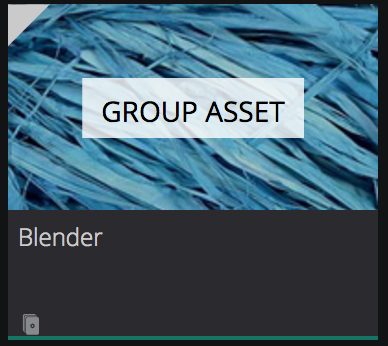
Each group asset in MAM is represented by a tile, as shown below. On each group asset tile, you will see the default image for a group asset, and the name.
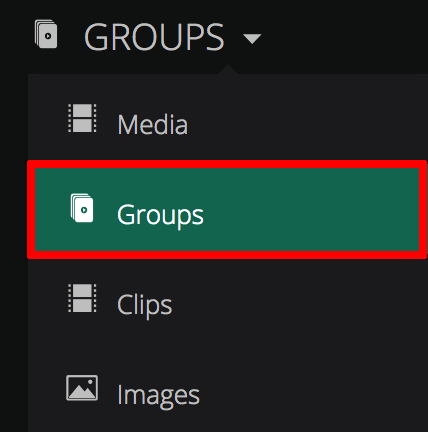
To access your group assets in MAM, click the filter drop down, and select Groups from the list.
You can scroll back and forth through your existing group assets in the Group Assets carousel, by clicking the back and forward arrows.
If you wish to view all of the group assets that you have in MAM, click the See All link in the top-right corner of the Group Assets carousel. You are then taken to the Browse: All Group Assets page, where you can see a complete list, ranging from newest to oldest.

Group Asset Summary Panel
If you click on an asset tile, a summary panel will appear on the right-hand side of the screen. In the Group Asset Summary panel you will see:
- Asset Name: The asset name is displayed and is editable at the top of the panel.
- Group Asset Thumbnail: The visual representation of the selected asset is displayed at the top of the panel. The user can chose to upload a custom image from here.
- The Details tab: Displays the specific details of that particular group asset such as the title, description, creation date, owner, groups, and assets.
- The Comments tab: Here you can post comments against the group asset
- Manage Asset option: This option is located at the bottom of the panel. By clicking this option you can view more in depth details about the group asset, as well as edit various asset details.
Changing the Group Asset Name
- With a group asset selected, and the summary panel loaded, click on the title at the top of the panel.

- Type the new name.

- Submit your change by clicking the tick icon

- The changes are made.

Details Tab
You can view and change the summary details for a group asset directly in the Details tab, such as the membership name.
To edit summary details:
- Click the Edit option next to the field you wish to change. For example the Membership Name field.

- Make your changes to the field, and click the tick icon.

Comments Tab
You can post a comment against an asset group, in the Comments tab.
To comment on a group asset:
- In the Insert a comment box, enter the text for your comment, and click the + icon.

- The comment is then posted below.
Manage Group Asset View
Navigating Through Groups
This option is located at the bottom of the panel. By clicking this option you can view more in depth details about the group asset, as well as edit various asset details.
In the Manage Asset view, you can see a list of all the assets in that particular asset group.

You can navigate through your group assets. If you click on a particular group asset, you can view all of the asset groups and assets that are contained within it.

In the Manage Asset view, you will also see three tabs, these are as follows:
The Asset Overview tab
In the Asset Overview tab you can view the basic details for that particular asset, the relationships for that asset, change the details, and apply tags.
In this tab, you will also see the status of the media asset. An example of a state is shown below:
A group asset can be in an Approved, Deleted, Locked and Purged state.

Metadata tab
Here you can view the metadata associated with the asset, as well as edit the information in the metadata fields.

Comments tab
Under the Comments tab you can post new comments against a group asset, as well as view existing comments that have been made against the group asset.

Ordering Assets Within a Group Asset
Group assets can house multiple media and image assets. If you have a large number of assets within a group, it may be difficult to keep track of them all. You can assign a number to each asset so that they are listed in a certain order.
For example, if your assets are episodes in a television show, you could list them in the order in which they appear on television.
- Click on a group asset tile.

- In the Group Asset summary panel, click the Manage Group Asset option.

- On the right-hand side of the screen, you can see all the assets that reside within that particular group asset.

- Under the POS column, locate the asset, wipe over the box, and click
 .
.
- Enter a number (or change the current number). For example, if you wanted that particular asset to be listed in 1st position within the group, you would enter 1 in the box.

- Click
 to save the changes.
 - The asset moves to the position you have specified.

Creating or Adding a Group Asset
To create or add assets to a group asset:
- Click the triangle in the top-left corner, for each asset you wish to place in a group asset.

- A tick icon will then appear, indicating that you have selected each asset.

- In the top-right corner of the screen, click the Bulk Actions icon . The Bulk Actions icon shows you how many items you have selected.

- The Bulk Actions panel will then appear on the right-hand side of the screen. In the Bulk Actions panel, you will see a list of the assets you have selected. Click the Add to Collection icon.

- To create a new group asset with the listed assets, select the
 icon.
icon. - This will present a pop up where you can define the group asset name.

- To add the listed assets click the + symbol
- Click Create to finalize.
Comments
0 comments
Please sign in to leave a comment.