
LEGACY Metadata, Search and Tags (Deprecated)
Metadata
Metadata is an integral and useful part of MAM. MAM allows you to edit the metadata associated with media assets, image assets, group assets, and collections directly in MAM.

Editing Metadata Schema
To edit a metadata field, simply click the Edit Metadata icon  located to the right of the field.
To save the changes, simply click the tick icon.
Additionally you will see various symbols and toggles next to the fields. As shown below:
Complex
In some metadata schemas, you will see a complex symbol. A complex houses a series of related fields. By clicking the complex symbol, the fields will come into view.
- To expand a complex, click the Expand Complex icon.

- The complex then expands, and the other fields within the complex will be displayed.
- To collapse a complex, simply click the Collapse Complex icon.

Multiplicity
Some metadata fields may have a multiplicity symbol next to them. This means that you can make one or more of these fields.
- To create another field of the same type, simply click the + symbol next to the field.
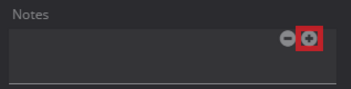
- The same field is then replicated below.
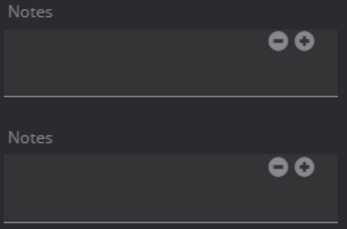
- To delete a replicated field, simply click the minus symbol next to the field.
Help
Some metadata fields will have a help symbol next to them. If you hover over this symbol, you can see helpful information which will explain what the field is for, and what must be inputted.

Attachment
Certain metadata schemas may contain an attachment field. You can add files such as image files or documents by dragging the file straight into the field
Currently there is a limitation which prevents you from attaching files in metadata schemas. When you attach a file to a metadata schema and save it, the link to file will be broken when you click it.
Checkbox
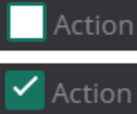
Some metadata fields will have checkboxes. Simply select the checkbox and a tick symbol will appear.
Single option
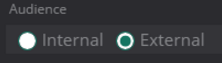
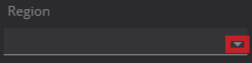
Some metadata fields may have single option fields in the form of either:
Radio buttons:
Drop down menus:
Creating a Clickable Asset Reference Link
You can add clickable asset reference links to your metadata schemas in MAM. This is accomplished by creating a special object asset field in the metadata schema.
Notes:
- The clickable asset link feature is only available from 6.1.2 onwards.
- For more information about using the Metadata Designer, please see the Metadata Designer user guide.
To create an object reference link, follow these steps:
- Open an existing metadata definition and add an Asset field.

Note: In order to edit an existing metadata definition, you must disable it first. Then when you have finished making the changes, you must save and re-enable it. - From the Object Type drop down, select Asset (File).

- From the Type drop down, select an existing type (variant) that you have created.

- From the Forms field, select Typeahead. This will make it easier to select the asset that you wish to link to in MAM.

- Click
 to save the metadata definition.
 - In the Types section, assign the metadata definition to a type.

- In MAM, navigate to an asset and select the type.

- Under the Asset Metadata tab, click
 , and edit the asset link field. Start typing the name of an asset, and select the asset that you want the link to point to.
- Save the metadata and the link appears.

- Click on the link and it takes you to the specified asset.
Search in FlexMAM (Depracated)
Boolean Operators
You can use the search features in MAM to help you locate your assets, collections, edits, and user defined objects. The search bar is located in the top-left corner of the screen, and is visible no matter where you are in MAM.
There are two types of search that can be performed in MAM. These are:
- Quick Search: You can type a keyword into the search bar at the top of the page, without applying any filters. You are then provided with results from across MAM including Assets, Collections, and Edits.
- Advanced Search: Advanced search enables you to apply filters which can help you widen or narrow your search.
Quick search
To perform a quick search, follow these steps:
- Enter a keyword in the search box, for example adventure.

- Press the Enter key or click

- The results are listed in the search panel.

MAM supports exact and partial matching in searches. You can use boolean operators to help narrow down or widen your searches.
Exact Matching
You can search for an exact word or phrase by wrapping it in quotation marks. For example: "movie".
Partial Matching
You can search for a partial term in MAM. You might want to search for part of a word or phrase such as mov. To mark a word or phrase as a partial term, enter it followed by an asterisk. For example: Mov*
Searching for Multiple Terms
You can search for multiple words and phrases in the same search. This can be achieved using the OR and AND operators.
OR:
You can search for two different terms using the OR operator. For example: movie OR film
AND:
You can search for multiple terms using the AND operator. For example: movie AND film
Combinations of Booleans
You can combine different booleans to narrow or widen your searches. Examples include:
- "movie" AND "film"
- "movie" OR "film"
- mov* AND fil*
- ("movie" AND "film") | ("video" AND "clip")
Advanced Search
To access the advanced search features, click the Search icon on the left-hand side of the screen.
At the top of the search panel, click Advanced Search option.

You will then be taken to the Advanced Search section.
The Advanced Search section contains a Search Criteria section, in which you can enter search criteria to help narrow down or widen your search, and the Tags tab, in which you can select and deselect tags you have applied to assets and collections, to help narrow down and widen your search.

The Search Criteria tab
Under the Search Criteria tab, there are several search criteria options available to help narrow down or widen your search. These options fall into the following categories:
General: Here you can specify general search criteria options, such as creation date, modified date, accounts, workspaces, variants, owner, whether the object is enabled, whether the object is deleted, and if the object is locked.

Asset: Here you can select asset options to help in your search.

Metadata: Here you can select metadata schema options to help in your search. Any metadata schema that is associated with assets you have uploaded will appear here.

FQL in MAM
You can use the Dalet Flex Query Language (FQL) to carry out complex searches in MAM. The MAM search bar recommends query parameters which can be used to either narrow or widen a search.

Example: If you type `tag`, a list of query parameters containing that phrase is displayed below the search bar. In the example below, you can see that the suggestions are related to searching for tags.

To select a suggestion from the drop down, follow these steps:
- Start typing a phrase. When you see the suggestion you wish to use click on it, or press Enter.

The suggestion is displayed in the search box.
- Enter a value to complete the query. For example, you could search for assets that are associated with a tag called "cars".

- Click Enter or
 to run the search.
Operator Suggestions
As you build your query, the search bar suggests operators that can be used to refine your queries. For example, if you type =, a list of related operators such as >, <. =, >=, <= is displayed.

Errors
If the syntax you have entered contains an error, the error is highlighted in red:

FQL Examples
FQL allows you to carry out searches using a combination of different operators and parameters. You can combine a number of different operators and query parameters to create search queries.
Examples:
- Search for an asset by specifying an account ID:
- `"Account ID"=12345`
- Search for assets of a particular file format:
- `"Asset Context Format Context Format"=MP4`
- Search for assets that are associated with one or more tags:
- `"Tags Tag"=car`
- `"Tags Tag"=(car OR transport)`
- `"Tags Tag"=(car AND transport)`
- Search for an asset by description (exact match):
- `"Description"=The Great Adventure is a film about a man who”`
- Search for an asset by description (using a single term):
- `"Description"= film`
- Search for an asset by description (containing two terms):
- `"Description"=(film AND man)`
- `"Description"=(film OR man)`
- Search for assets by video codec:
- `"Asset Context Video Stream Contexts Codec"=H264`
- Search for asset by audio codec:
- `"Asset Context Audio Stream Contexts Codec"=ATRAC3`
For more information about FQL, please consult the main FQL guide
Tags
Tags are an incredibly useful feature of MAM. You can add tags to your assets, collections, and clips in order to help you locate them quickly and easily in a search. You can add tags to your assets and collections in the Details tab of both the Asset Details panel and Collection Details panel.
There is a character limit for tags in MAM. Each tag can consist of 30 characters maximum.
Adding a Tag
To add a tag follow these steps:
- Click on the tile for an asset or collection and the Details panel will appear. The tags section is located at the bottom of the panel.

- To expand the Tags section, click the arrow icon.

- To add a tag to an asset or collection, type a name for the tag in the Insert a tag field.

- Click the + icon.

- The tag will then appear in the list of tags for that asset or collection.

Removing a Tag
To remove a tag, simply hover over the tag and a Delete icon will appear. Click the Delete icon and the tag is deleted.

Bulk Tagging
You can tag multiple assets or clips with the same tag. To do this, follow these steps:
- Click the triangle in the top-left corner of the asset tile, for each asset you wish to select.

- When an asset / clip is selected, a tick symbol will be displayed.

- On the top toolbar, click the Bulk Actions
 icon.
icon. - In the Bulk Actions panel, expand the Tags section, by clicking the arrow icon next to Tags.

- Enter the name of your tag and click the + icon.

- The tag is applied to all the selected assets.
Comments
0 comments
Please sign in to leave a comment.