
FlexMOVE Updating Metadata
Adding Metadata to Uploaded Assets
It is useful to enrich your assets with metadata to help finding assets later on.
To add metadata to an asset:
- Open FlexMOVE and select an asset to upload.
Select the Inbox and Workspace. If a metadata schema has been associated to the Inbox you have chosen, you can add metadata to the assets that you upload by filling the fields in the metadata schema form displayed in FlexMOVE.
- Click Import files; the asset is ingested with the metadata.
- If there are mandatory fields in the form, you will not be able to upload the files until you fill these fields. A red asterisk indicates a mandatory field.
Adding Metadata to Assets in a Bulk Upload
You can import multiple assets simultaneously. You can import these assets with the same metadata or you can add individual metadata for each of the assets that you are uploading. For example, you may have selected 10 assets for an upload, and you might want the information for each asset to be completely different.
To add metadata when bulk uploading assets:
- Select multiple files to upload in FlexMOVE.
Select the Inbox and Workspace. By default, the first asset is selected. To bulk update metadata, select multiple files and if you add metadata to the form, this metadata will be saved for all of the selected assets.
- In this example the file name is used as the asset name and a single description is added to all of the assets.
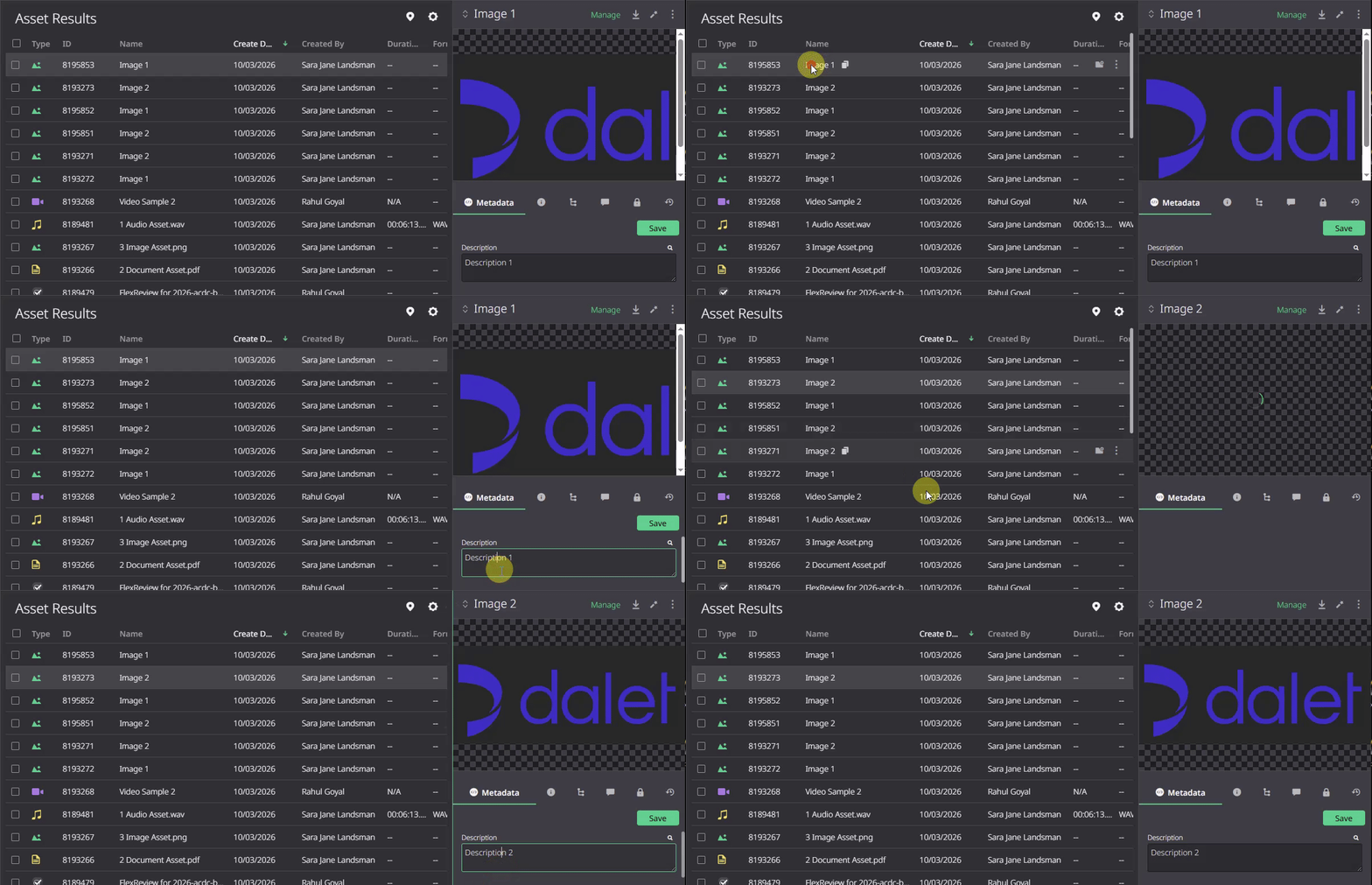
- If you want to assign different metadata for each individual file you are uploading, click on each file separately and add the relevant metadata for each asset separately.
In this example, each asset has been created with the Name and Description typed in the metadata form in FlexMOVE - Image 1/Description 1 and Image 2/Description 2.
Multiple Values Label
If you have selected multiple assets to upload in FlexMOVE, and the assets have different values in certain metadata fields these fields are read only or the <Multiple Values> label may be shown in the Upload window.
Comments
0 comments
Please sign in to leave a comment.